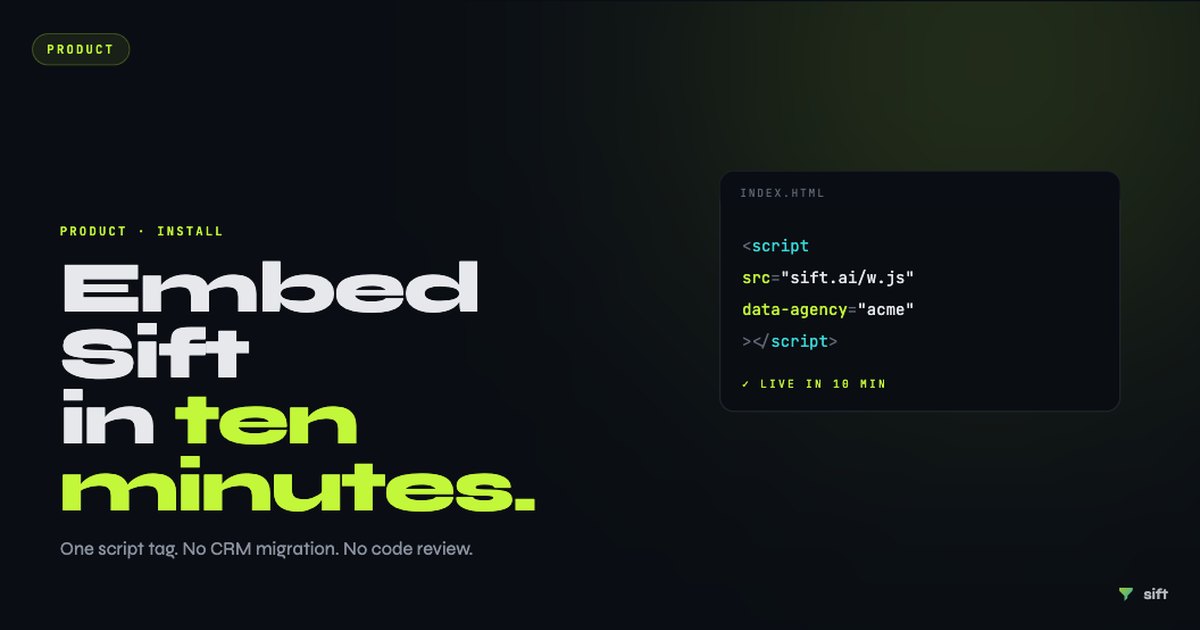
Adding Sift to your agency website takes under 10 minutes. There's no plugin to install, no server to configure, and no developer needed. You paste one snippet into your site and the widget appears, ready to handle AI lead qualification for UK estate agents around the clock.
This guide walks through the full setup, from creating your Sift account to handling your first qualified lead. Sift plans start from £149/month with a 14-day free trial and no card required.
Step 1: Create your Sift account and organisation
Go to sift.software/auth and sign up with your agency email. You'll be prompted to create an Organisation. This is your agency's account container, where your widget settings, lead history, and billing all live.
During onboarding, you'll:
- Name your organisation (your agency name)
- Set your primary business type (sales, lettings, or both)
- Upload your property listings (CSV upload or connect your website)
- Write your initial system prompt (the instructions your AI agent follows)
The onboarding wizard guides you through each step. You don't need to get the system prompt perfect on day one, it's editable at any time from your dashboard.
Step 2: Get your embed snippet
From your dashboard, go to Settings → Widget. You'll find your personalised embed snippet, a small block of JavaScript unique to your organisation. It looks like this:
Copy this snippet. You'll paste it into your website in the next step.
Step 3: Add the snippet to your website
The snippet goes just before the closing </body> tag on every page where you want the widget to appear. In most cases, that means every page, so you want it in your site's global footer or layout template.
WordPress
Install and activate the "Insert Headers and Footers" plugin. Go to Settings → Insert Headers and Footers and paste the snippet into the Footer Scripts box. Save. Done.
Wix
Go to Settings → Custom Code. Under "Add Code to Pages," select "All Pages" and "Body - end." Paste the snippet. Publish.
Squarespace
Go to Settings → Advanced → Code Injection. Paste the snippet into the Footer field. Save.
Webflow
In the Project Settings → Custom Code tab, paste the snippet in the Footer Code section. Publish your site.
Custom HTML / any other platform
Paste the snippet directly before </body> in your base layout template. If your platform supports it, add it site-wide rather than page-by-page.
Step 4: Verify the widget is live
After publishing, visit your agency website in a private/incognito browser window. You should see the Sift chat widget in the bottom-right corner of the page. Click it, you'll be taken through the GDPR consent step first (if enabled), then the qualification conversation will begin.
If the widget doesn't appear:
- Check that you've published/saved any changes in your website platform
- Confirm the snippet is pasted correctly (no extra spaces or quote marks broken)
- Check your browser console for JavaScript errors
- Ensure your site doesn't have a Content Security Policy that blocks external scripts. If it does, you'll need to whitelist
sift.software
Step 5: Test with a real conversation
Before pointing live traffic at the widget, run a test conversation using each of your three buyer archetypes:
- Hot lead test: say you're chain-free, have a DIP, and want to view within three weeks. Check that the agent flags this as high priority and offers to book.
- Soft lead test: say you're "just looking," no mortgage plans yet, timeline unclear. Check that the agent handles this without pressure and collects contact details for a follow-up.
- Out-of-hours test: if it's outside business hours, check that the agent correctly offers to have the team follow up in the morning rather than making promises it can't keep.
If any of these conversations produces an unexpected result, adjust your system prompt in Settings → Agent Configuration and re-test.
Step 6: Route leads to other tools (optional)
Qualified leads land in the Sift dashboard with full transcript, GDPR consent record, lead score and contact details. For most agencies, this is the primary workflow: check the dashboard each morning, review overnight leads, and action the hot ones. You can export the lead list via CSV on every plan.
On Growth and Scale, you can also route leads into any system via Zapier (6,000+ apps), an outbound webhook, or the REST API. That's useful for pushing leads into a CRM, spreadsheet, or notification tool. Native CRM integrations (Reapit, Dezrez, Alto and others) are on the roadmap.
Full integration documentation is available at docs.sift.software.
What happens with your first real lead
The first time a real visitor starts a conversation, here's what happens:
- The visitor sees the Sift widget on your site and clicks to open it
- If GDPR consent is enabled, they accept data processing before the conversation begins
- The AI agent greets them in your agency's voice and begins qualifying
- Within 5 to 10 exchanges, the agent has captured chain status, mortgage readiness, budget, and timeline
- The lead is scored and appears in your dashboard, flagged as hot, warm, or cool
- If the lead is hot and a viewing has been requested, you'll see it in your priority queue when you next log in
You don't need to do anything in real time. That's the point: Sift handles the first response and qualification 24/7, so you only spend your time on leads that are worth your attention.